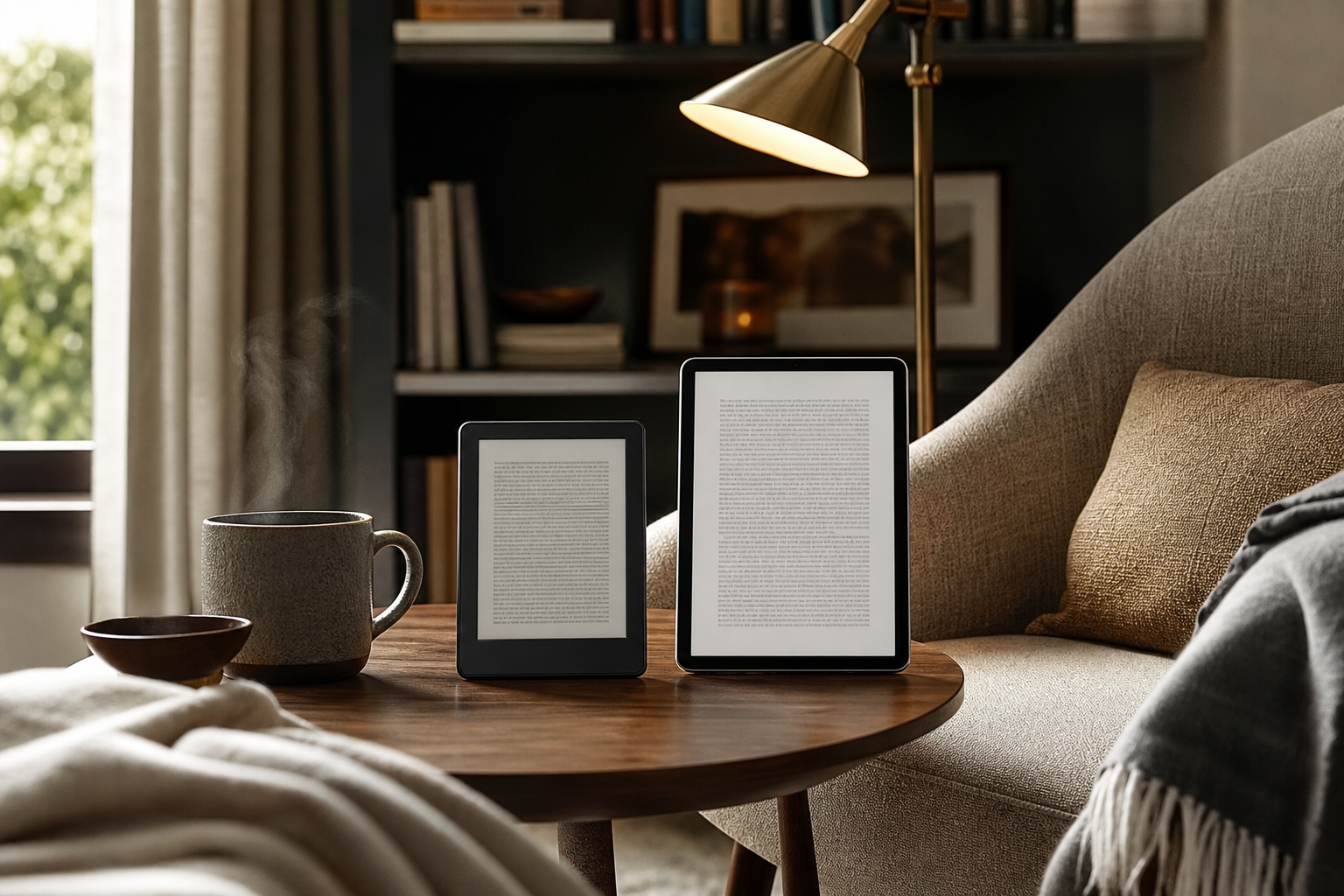
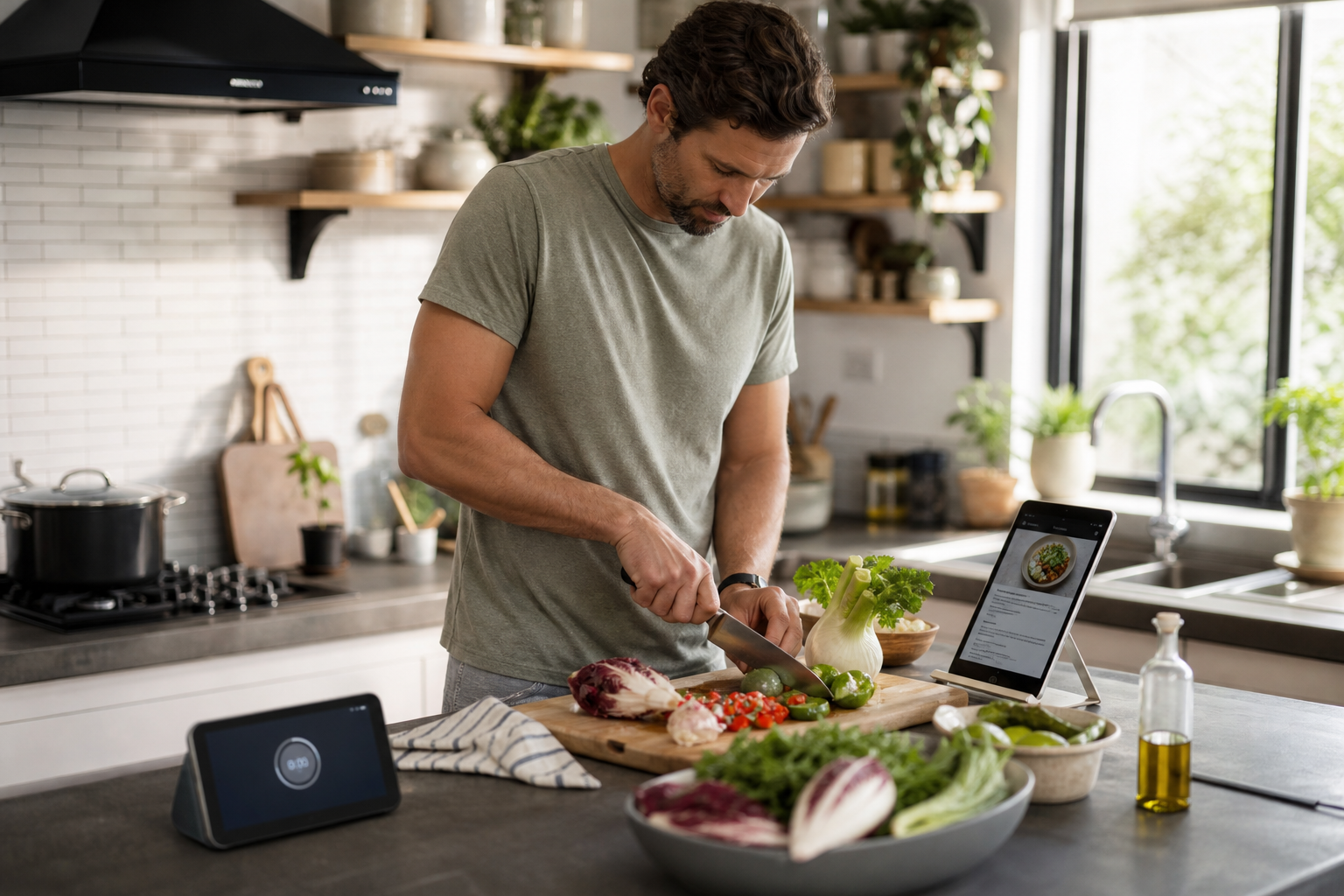
Choose a smart display if you want an appliance-like helper that stays in one place, responds to voice commands, and is ready whenever you need a timer or recipe step. Choose a tablet if you want one screen that can move around the house and do much more, accepting that it usually involves more tapping, charging, and app management.
What Matters Most
Explore Options That Fit Your Everyday Routine
Compare smart displays and tablets that suit your cooking routine, kitchen space, and budget. Explore current options on Amazon and find what works best for you.
Check current prices, seller details and specifications on Amazon. Featured image is illustrative.
As an Amazon Associate I earn from qualifying purchases.
Start with the kitchen job, not the screen
The simplest choice depends on what you want the device to do between chopping, stirring, and cleaning up. If the main jobs are setting multiple timers, checking a recipe, adding items to a shopping list, playing music, and answering quick questions, a smart display is designed around that pattern. It behaves more like a countertop appliance than a small computer.
A tablet is a better fit when the kitchen is only one part of the plan. You can use it for a recipe website, a streaming service, a video call, email, digital books, travel planning, or a family calendar, then carry it to another room. That flexibility is useful, but it also means more choices, more apps, and more settings.
The practical dividing line is simple: a smart display reduces decisions, while a tablet expands them. Neither is automatically easier. The better option is the one that matches how much you want to do from the counter.
- Best for a smart display: timers, voice requests, music, household reminders, smart-home controls, and glanceable information.
- Best for a tablet: full websites, specialized recipe apps, streaming, video calls, notes, reading, and portable use.
Smart displays are simpler for hands-free cooking
Smart displays are built around a voice assistant and a screen. On compatible devices, you can ask for a timer, add an item to a list, play music, show a video, or provide information without touching the display. Google says Nest Hub can show visual answers, YouTube videos, calendars, reminders, photos, and compatible smart-home controls. Amazon documents similar voice-and-touch experiences for Echo Show devices, including timers, lists, reminders, recipes, and video calls.
That matters when your hands are wet, covered in flour, or holding a hot pan. You can ask for the next step, pause or resume content, or create another timer without wiping your fingers before touching glass. The display also keeps common information visible, so you may not need to open an app or navigate through several menus.
The trade-off is that voice assistants are not equally good at every request. A recipe may come from a supported service, a skill, or a web result rather than a neatly organized cooking app. If you need to compare several recipes, edit a complicated ingredient list, or follow a long article, the interaction can become less direct.
- A smart display is especially convenient for several simultaneous timers.
- Voice control is useful, but you may still need the screen for selecting options or reviewing details.
- The experience depends on the assistant, account, compatible services, and internet connection.
Tablets offer a better screen and broader access
A tablet gives you a more general-purpose interface. You can open a particular recipe app, browse a favorite food site, watch nearly any supported streaming service, join a video call, or keep a cooking video beside a notes app. Modern iPads, for example, support multiple app windows and side-by-side use, which can be helpful when you want ingredients in one place and a shopping list or conversion tool in another.
That versatility is the tablet’s strongest advantage. You are not limited to the services or visual formats supported by a smart-display platform. If a recipe is stored in a PDF, inside a subscription app, in a browser tab, or in an email, a tablet is more likely to handle it naturally.
The cost of that flexibility is interaction. You may need to unlock the screen, find the right app, dismiss a notification, scroll with a clean finger, and manage battery life. Voice assistants are available on many tablets, but the experience may not feel as appliance-like as a display designed to listen from a fixed spot.
- A tablet is the stronger choice for full web browsing and specialized apps.
- Side-by-side apps can help with recipes, shopping lists, conversions, and video.
- A stand is important if you want the tablet to act like a permanent kitchen screen.
Setup, power, and upkeep are part of simplicity
A smart display generally has a narrower setup path: connect it to Wi-Fi, sign in to the relevant account, choose services, and place it near an outlet. Google’s setup instructions require the Google Home app, a Google Account, Wi-Fi, and a compatible phone or tablet. Google also notes that its smart displays do not have batteries and must remain plugged in.
A tablet can be familiar if you already use the same operating system elsewhere. You may already know how to download apps, adjust settings, and connect accessories. But starting from scratch can involve account setup, operating-system updates, app permissions, screen-lock settings, notification controls, and a charging routine.
In the kitchen, power is a meaningful difference. A permanently plugged-in smart display is ready without planning, while a tablet may need to be charged before a long cooking session. Some people prefer a tablet’s portability enough to accept that extra step; others find a fixed, always-ready display more dependable.
- Choose a smart display for a fixed location and low-maintenance routine.
- Choose a tablet if you already own one and do not mind adding a stand and charger.
- Keep either device away from splashes, steam, heat, and areas where food can land directly on the screen.
Privacy and household sharing deserve attention
Both categories involve accounts, network connections, and personal information. Smart displays may use microphones continuously for wake-word detection and can support personalized features such as voice profiles, calendars, reminders, calling, and shopping lists. Amazon says Alexa recordings can be reviewed and deleted through its privacy controls; Google’s setup materials describe optional features such as Voice Match, personal results, and calling.
Tablets create a different set of considerations. They may contain email, photos, payment information, browser history, and work or personal documents. If several people use the kitchen tablet, you may want a guest arrangement, separate profiles where supported, or a habit of locking the screen when you walk away.
For a shared kitchen, a smart display often feels more natural because it is a household device rather than someone’s personal computer. For a private kitchen used by one person, a tablet may be perfectly comfortable, especially if it already fits into that person’s broader technology setup.
- Review microphone, camera, calling, personalization, and purchase settings before sharing the device.
- A camera-equipped device can be useful for calls but may not suit every kitchen location.
- Use a separate household account or profile when personal information should not appear on a shared screen.
Which one should you buy?
Buy a smart display if your priority is the least complicated kitchen routine. It is the better match for someone who wants to say “set a timer,” “add tomatoes to my list,” or “show me the next step” and keep moving. It also suits a kitchen that already uses compatible smart lights, plugs, cameras, music services, or household reminders.
Buy a tablet if you want the kitchen to have a full computer-like screen. It is the better fit for people who compare recipes, use niche cooking apps, watch different streaming services, make frequent video calls, read long instructions, or want to carry the same device to the living room, bedroom, or office.
If you are undecided, consider whether you already own a suitable tablet. A tablet plus a sturdy stand may be the most economical way to add a kitchen screen, while a new smart display may be the simpler dedicated solution. The final choice is less about screen size than about whether you want an appliance that answers or a computer that can do almost anything.
- Choose a smart display for simpler, mostly hands-free kitchen help.
- Choose a tablet for maximum flexibility and portability.
- Choose both only if you have distinct roles: a fixed voice assistant for quick tasks and a tablet for detailed recipes or entertainment.
Ready to Find Your Best Match?
You know what matters most. Explore smart displays and tablets on Amazon, compare the details, and choose the option that fits your everyday life.
Check current prices, seller details and specifications on Amazon. Featured image is illustrative.
As an Amazon Associate I earn from qualifying purchases.
Sources & editorial note
This guide is research-based and does not claim hands-on testing unless explicitly stated.
- Google Nest Hub Help — Supports Nest Hub features including voice assistance, visual answers, YouTube, calendars, reminders, photos, and compatible smart-home controls.
- Google Home and Nest Help: Set up a smart speaker or display — Supports setup requirements including the Google Home app, Google Account, Wi-Fi, phone or tablet, and optional personalization features.
- Google Home and Nest Help: Power requirements — Supports the statement that Google smart displays do not have batteries and must remain connected to power.
- Apple Support: Multitask on iPad with iPadOS 26 — Supports iPad multitasking, side-by-side apps, windowed apps, and switching between applications.
- Amazon Alexa and Alexa Device FAQs — Supports Alexa voice requests, timers, lists, smart-home controls, Fire tablet Alexa modes, and privacy controls.
- Amazon Help: Video calls on Echo devices with a screen — Supports video-calling capabilities and camera controls on compatible Echo Show devices.